Table of Contents
So What IS Build Mode, Exactly?
Build Mode is where you actually make your Parafolk's home. Whether you're slapping down a single chair or building a ridiculous 5-story mansion with curved walls and split levels (we've all been there), this is where your architectural dreams happen — or crash and burn.
The whole philosophy behind Paralives' building system is freedom. No grid snapping you into rigid patterns. No preset room layouts you're forced to use. The only real limit is how many Paradimes you have in the bank. And let me tell you from experience: it's VERY easy to blow your entire budget on one room if you're not careful.
See It In Action
Watch official Paralives gameplay trailers featuring Build Mode in the Videos section on the homepage. Seriously, watching someone else build will give you ideas you never would've thought of on your own.
Build Mode Screenshots
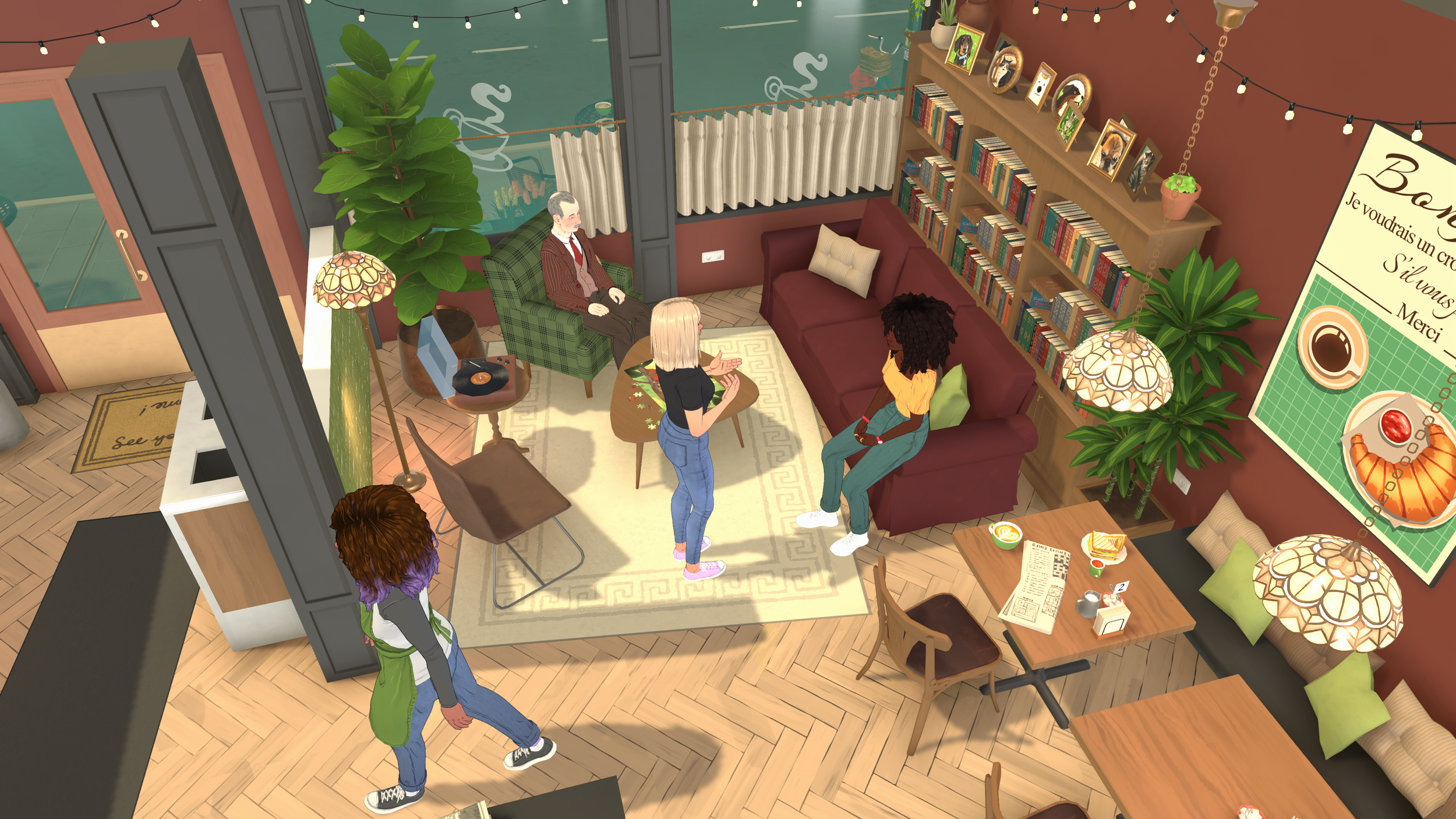
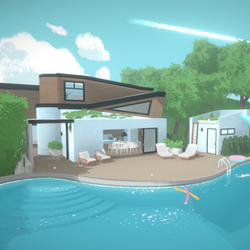
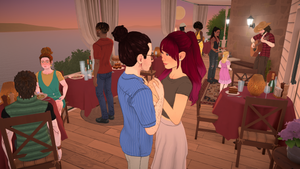
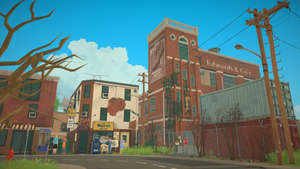
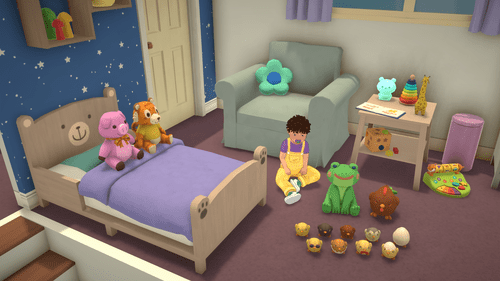
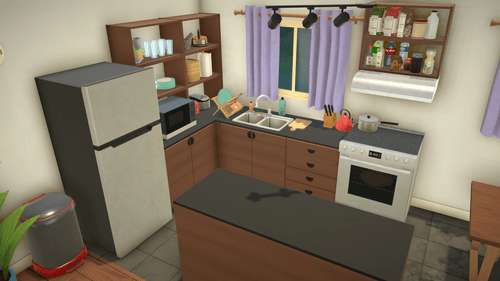
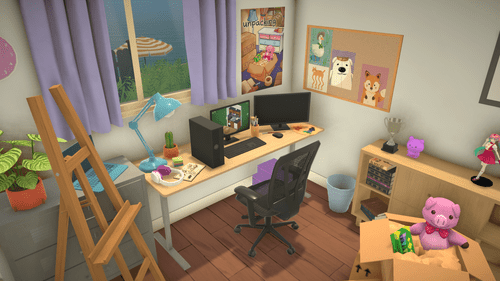
Here are some real screenshots showcasing Paralives' build mode in action — from curved walls and split levels to fully furnished homes built by the community.
Build Mode Tutorial Video
Core Building Tools
Advanced Object Placement Tool
This is hands down your best friend in Build Mode. Once you learn what it can do, you'll never go back to basic placement:
- Free rotation — Spin objects at ANY angle, not just 90-degree increments. You can even tilt stuff diagonally if you're feeling chaotic.
- Free placement — Put things wherever you want. No grid, no snapping (unless you want it).
- Stacking — Stack objects on top of each other. Books on books on books. The possibilities are endless and slightly unhinged.
- Elevation — Lift things off the ground. Perfect for shelves, wall art that actually looks mounted, or floating decorations if you're into that.
- Flipping — Flip doors, handles, and yes, even toilet paper rolls for left-handed vs right-handed bathrooms. The attention to detail here is wild.
Wall Tool
The Wall Tool in Paralives puts every other life sim's wall system to shame. Here's what you can do:
- Make walls any length you want — no grid forcing you into set sizes
- Angle them however you please
- Full walls, half-walls, or full-on fences — your call
- Snap to nearby objects or an optional grid if you need some structure in your life
Real talk: There IS an optional grid you can turn on at any angle/size if you like structured building. But you absolutely don't have to use it. Free-form forever, baby.
Curved Walls & Free Placement
Okay, curved walls. This is THE feature that got everyone hyped about Paralives in the first place, and it lives up to the hype. You can make completely free-form curves — the kind of organic shapes that are literally impossible in other life sims:
- Round rooms that actually look round (revolutionary, I know)
- Bay windows that don't look like someone glued them on as an afterthought
- Curved hallways for when straight lines are too mainstream
- Rounded exterior walls — perfect for cottagecore builds or just flexing on your friends
- Custom rooflines that actually follow the curve of your walls below
Heads up: At Early Access launch, you can't put windows or doors on curved walls yet. Yeah, I know. The devs confirmed this is coming during EA though, so hang tight.
Wall Height
Here's something cool: you can change wall height PER SECTION. So you can have a soaring 12-foot living room ceiling connected to a cozy 8-foot kitchen nook. Same wall tool, different heights. Combined with split levels? The architectural variety you can get is kind of ridiculous (in a good way).
Color Wheel System
Everything in Build Mode can be recolored with the full color wheel. And I mean everything:
- Furniture — Couches, tables, beds, chairs, appliances... if it exists, you can paint it.
- Walls — Each individual wall gets its own color. Gradients between colors? Yep, supported.
- Floors — Different color per room, per section. Go wild.
- Ceilings — Yes, even ceilings get their own color. Your Para will never have to stare at plain white overhead again.
- Textures — Change material textures separately from color. Want a metallic red table? You do you.
Punch in exact hex codes if you're matching a specific palette, or just eyeball it with the visual wheel. Changed your mind? One click resets anything to default.
Color Customization Examples
Navy blue kitchen cabinets? Done. Sage green living room walls? Easy. Warm oak bedroom floor? You got it. All independently, all with the same tool. No other life sim gives you this much control over color.
Split Levels & Upper Floors
Split Levels
Any floor can have multiple platform heights. This sounds simple but it opens up SO many design options:
- Kitchen raised a few steps above the living room — instant breakfast bar vibes
- Loft sleeping areas built right into the main floor
- Split-level entryways that make your house feel expensive (even if it's not)
- Pools at different depths for that resort feel
- Underground basements (coming in a future update — I'm waiting as impatiently as you are)
Stairs auto-adjust to connect different platform heights, which is a huge QoL win. And if the height difference is just one step? Your Para will literally just step up. No stairs needed. Cute.
Upper Floor Assist
Building up? The upper floor assist tool is your new best friend. It can automatically align your second-floor walls with the first floor below, so multi-story builds don't become an exercise in frustration. Used curved walls downstairs? The upper floor copies the same curve automatically.
Oh, and you can duplicate entire floors with one click. Apartment building builders, rejoice.
Terrain Tools
Build Mode comes with full terrain editing, which means you're not stuck building on flat ground forever:
- Raise — Build hills, mounds, raised garden beds. Make your lot interesting from the outside too.
- Lower — Dig out sunken patios, garden depressions, or prep for walkout basements when those finally arrive.
- Flatten — Smooth everything out if your terrain experiments went... off the rails.
- Sculpt — Fine-tune like you're working with digital clay. Brush-style control feels really satisfying.
From experience: Terrain works best when you have at least a rough idea of what you want before you start digging. I've spent way too much time sculpting hills only to realize they're in the wrong spot for my house layout. Plan the shape of your lot FIRST, then build on top.
What's Coming Later?
The Early Access roadmap has some exciting terrain stuff in the pipeline:
- Proper basements (finally!)
- Way more roof customization options
- Buildable pools
- Lakes and ponds on your lot
- World editing tools — yeah, edit the actual town of Melino
Build Mode Catalog
The catalog is organized into 4 tabs to keep things sane:
| Tab | Description |
|---|---|
| Theme | Browse by room type: kitchen, bedroom, outdoor, bathroom, whatever |
| Function | Browse by what the thing DOES: seating, storage, decor, lighting... |
| Brand/Style | Browse by aesthetic — modern, rustic, minimalist, chaotic evil... |
| Search | Type a name or keyword when you know exactly what you want |
Objects can have multiple tags, so the same couch might show up under "living room," "seating," AND "modern style." Smart system.
Steam Workshop Support
Build Mode objects are fully moddable day one, and Steam Workshop integration means:
- Download custom furniture, decorations, vehicles, and building parts made by other players
- Share your own creations with the community
- Fill gaps in the base game catalog with community-made content (there's ALWAYS something someone has already built that you need)
Note on exporting: You can share individual objects and building parts to the Workshop right now. Full house exports (uploading an entire build) aren't supported yet but are planned. Patience, friends.
Stuff I Learned After 50+ Hours in Build Mode
- Build the shell first. Get your exterior walls and basic structure down before you start placing furniture. Nothing hurts more than having to delete a 1200 Paradime custom kitchen because you decided the room needs to be 2 feet wider.
- Use split levels everywhere. Even a tiny height difference between rooms makes builds look WAY more professional. It's one of those small details that separates "first house" energy from "I actually know what I'm doing" energy.
- Color BEFORE you furnish. Paint walls, pick floors, set ceilings — THEN match furniture to them. Trying to do it backwards is a nightmare of constant recoloring.
- Elevation is your secret weapon. Use it for floating shelves, wall-mounted art that looks real, tiered displays... things that look impossible in other games are trivial here.
- Curved walls aren't just for interiors. Organic garden borders, curved pathways, round patios — use 'em outside too!
- Watch your budget like a hawk. Paradimes disappear FAST in Build Mode. I've started so many houses I couldn't afford to finish. Keep a mental (or literal) running total of big purchases.
- Stack things for that lived-in look. Books on shelves, plates in cabinets, towels on racks. A perfectly empty house looks like a showroom. A cluttered house looks like home.
- Fences and half-walls have hidden potential. Room dividers, breakfast bars, decorative accents — they're not just for keeping your dog in the yard.
- Check mods before you DIY. Someone on the Workshop has probably already made that weird specific furniture piece you're trying to hack together. Save yourself the headache.
- TEST IN LIVE MODE. I cannot stress this enough. Switch to Live Mode after furnishing and watch your Paras use the space. I once built a gorgeous kitchen where the fridge blocked the stove. My Para couldn't cook for 3 Sim-days before I noticed. Don't be me.