Table of Contents
- Opening Paramaker — Interface Overview
- Body Tab — Height & Shape Controls
- Appearance Tab — Color Wheel & Face Sliders
- Clothing Tab — Gender-Neutral Wardrobe
- Personality Tab — Stats, Vibe & Talent
- Advanced Personality — Pronouns & Settings
- Life Stage Selection — Choosing Starting Age
- Tips for Great Characters — 10 Pro Tips

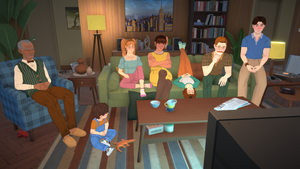

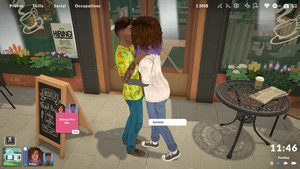
Full Paramaker Walkthrough Video
Section 1: Opening Paramaker — Where to Find It & What It Looks Like
The Paramaker (PAM) is Paralives' comprehensive character creation engine. You access it automatically when starting a new household or when adding a new Parafolk to an existing family. The interface is divided into several tabs along the top of the screen, with a live 3D preview of your character in the center.
The main Paramaker interface consists of:
- Top navigation bar — Tabs for Body, Appearance, Clothing, Personality, Advanced Personality, and Life Stage selection
- Center viewport — Real-time 3D model that updates as you make changes, rotatable by clicking and dragging
- Right-side panel — Context-sensitive controls that change based on which tab is active
- Bottom toolbar — Quick actions like randomize, undo/redo, save preset, and confirm creation
Tip: You can rotate your Parafolk in the 3D preview by clicking and dragging anywhere on the model. Use the scroll wheel to zoom in/out for detailed work on facial features.
`n`nSection 2: Body Tab — Height Slider & Shape Controls
The Body tab is where you define your Parafolk's fundamental physical structure. This is the first and most important step in character creation because these traits are genetic — they will be passed down to children.
Height Slider
The height slider is one of the most prominent controls in the Body tab. Simply click and drag the slider to adjust your Parafolk's height from very short to very tall. Key details:
- Height affects how clothes fit on the 3D model — taller Parafolks have longer limbs proportionally
- Height is fully genetic and will influence children's potential height range
- Babies and Toddlers do not have height sliders available (they grow naturally)
- You can enter exact numerical values by clicking the number next to the slider
Body Shape Controls
Beyond height, the Body tab includes sliders for every major body region:
| Slider Category | What It Controls | Genetic? |
|---|---|---|
| Chest Width | Broadness of the upper torso | Yes |
| Waist Size | Narrowness or wideness of midsection | Yes |
| Hip Width | Pelvic bone structure width | Yes |
| Shoulder Width | Shoulder breadth and arm positioning | Yes |
| Arm Thickness | Muscularity of arms | Yes |
| Leg Thickness | Muscularity of legs | Yes |
| Torso Length | Upper body vs lower body ratio | Yes |
| Neck Length | Neck proportions | Yes |
Important: All body slider values are locked as genetic code once you confirm character creation. You cannot change them later through mirrors or dressers — only clothing and makeup can be modified post-creation.
`n`nSection 3: Appearance Tab — Skin Color Wheel & Face Sliders
The Appearance tab handles everything visual about your Parafolk that isn't body structure or clothing. This is where the famous four-zone color wheel lives.
Skin Color Wheel — 4 Zones Explained
The skin color system uses four independent color zones, each controlling a different aspect of skin rendering:
| Zone | Function | Example Hex Range | Effect Description |
|---|---|---|---|
| Base | Main skin tone | #E8B89D – #5C3317 | The primary skin color across most of the body |
| Highlight | Light catch areas | #FFE4CC – #A67C52 | Appears on cheekbones, nose bridge, forehead — adds dimension |
| Shadow | Darker undertones | #8B6914 – #2D1810 | Under eyes, neck creases, under chin — creates depth |
| Blush | Warm accent tones | #FFB6A3 – #CC6644 | Cheeks, elbows, knuckles — natural flush areas |
Pro Technique: Natural-Looking Skin
For realistic skin, keep all four zones within the same hue family but vary brightness. Set Base to your desired tone, Highlight ~30% lighter, Shadow ~25% darker, and Blush slightly warmer than base. For fantasy characters, feel free to go wild — purple shadows, green highlights, anything goes!
Hair Color
Hair uses its own four-zone color wheel: Root, Base, Highlight, and Tips. This allows ombre effects, sun-bleached tips, and realistic root growth simulation. Unnatural colors (neon pink, electric blue) are fully supported but flagged as non-genetic.
Eye Color
Eyes use three zones: Iris (main eye color), Pupil (center black/dark), and Sclera (white of eye). Eye color follows dominant/recessive genetics rules.
Face Shape Sliders
The face has the most granular control of any body part. Each feature has its own slider set:
- Nose — Bridge height, nostril width, tip shape, overall size
- Jaw — Jawline angle, chin prominence, jaw width, chin length
- Cheeks — Cheekbone height, fullness, hollow depth
- Eyebrows — Thickness, arch angle, length, distance from eyes
- Lips — Upper lip thickness, lower lip thickness, lip width, cupid's bow definition
- Ears — Ear size, lobe size, ear angle, ear protrusion
- Eyes — Eye size, spacing, tilt angle, eyelid style
Section 4: Clothing Tab — Gender-Neutral Wardrobe
Paralives features a completely gender-neutral clothing system. Every outfit in the game can be worn by any Parafolk regardless of their gender settings or body shape. Here's how it works:
Browsing Outfits
- Clothing is organized by category: Tops, Bottoms, Dresses/Suits, Outerwear, Shoes, Accessories
- Each category has sub-filters for style (casual, formal, athletic, etc.)
- Use the search bar to find specific items quickly
- Click any item to preview it instantly on your 3D model
Color Matching Clothes
Every clothing item can be recolored using the same color wheel system from the Appearance tab. This means you can create perfectly coordinated outfits by matching shirt colors to shoe colors, or create bold contrasts for fashion-forward looks.
Tip: Hold Shift while clicking multiple clothing items to layer them. Not all items support layering — check the compatibility indicator (green dot = compatible). An open jacket over a t-shirt is a classic layered look!
`n`nSection 5: Personality Tab — Stats Point-Buy, Vibe & Talent
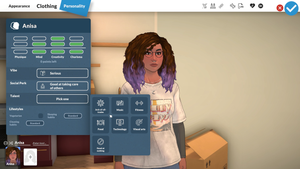
The Personality tab defines who your Parafolk is on the inside. It's split into three major systems: Stats, Vibe, and Talent.
Stats Point-Buy System
You have 7 points total to distribute across four stat categories. Each stat can receive a maximum of 3 points:
| Stat | Max Points | Affects |
|---|---|---|
| Physique | 3 | Physical strength, exercise efficiency, health recovery rate |
| Mind | 3 | Learning speed, logic puzzles, technology skill gain |
| Creativity | 3 | Art skill speed, music skill speed, crafting quality |
| Charisma | 3 | Social interaction success, romance chances, career networking |
Example distributions: All-around (2/2/2/1), Artist build (1/1/3/2), Jock build (3/1/1/2), Intellectual (1/3/2/1).
Vibe Selection — 8 Options
Vibes determine your Parafolk's general emotional tendency and social impression:
| Vibe | Description | Best For |
|---|---|---|
| Cheery | Naturally positive, bounces back from bad moods fast | New players, happy households |
| Gloomy | Prone to sadness but deep emotional range | Story-driven play |
| Hot-Headed | Quick to anger but also quick to forgive | Dramatic storylines |
| Chill | Rarely gets upset, goes with the flow | Relaxed gameplay |
| Romantic | More likely to seek romantic interactions | Legacy family play |
| Goofy | Loves jokes and pranks, entertains others | Social households |
| Snob | Critical of others, high standards | Rivalry narratives |
| Clueless | Misses social cues, innocent reactions | Comedic playthroughs |
Talent Selection — 7 Options
Talents give a permanent XP bonus (typically 2x) to skills in a specific domain. Choose wisely — this significantly speeds up skill progression:
- Artistic → Painting, Photography skills
- Musical → Guitar, Piano, Triangle, Singing skills
- Culinary → Cooking, Baking skills
- Athletic → Exercise, Dance, Sports skills
- Intellectual → Programming, Logic, Science skills
- Social → Charisma-based interactions, Comedy skill
- Nature → Gardening, Fishing, Foraging skills
Section 6: Advanced Personality — Pronouns, Pregnancy & Jealousy
The Advanced Personality section handles identity and behavioral preferences that affect gameplay mechanics:
Pronouns
Choose from three pronoun sets: He/Him, She/Her, or They/Them. This choice affects how other Parafolks refer to your character in dialogue and notifications. It has no gameplay effect beyond presentation.
Pregnancy Settings
This setting determines reproductive capability and is independent of physical appearance or pronouns:
- Can Get Pregnant — This Parafolk can become pregnant (or the equivalent mechanic)
- Can Get Others Pregnant — This Parafolk can impregnate others
- Neither — No pregnancy involvement (useful for certain story concepts)
Jealousy Threshold
Adjust how easily your Parafolk becomes jealous in romantic situations:
- Low jealousy — Rarely reacts negatively to partner interactions with others
- Medium jealousy — Standard reaction level (default)
- High jealousy — Strong negative reactions to perceived romantic threats
Section 7: Life Stage Selection — Choosing Starting Age
Before finalizing your character, you must select a life stage. This determines their starting age, available personality points, and initial capabilities:
| Life Stage | Approx. Age | Personality Points | Key Notes |
|---|---|---|---|
| Baby | 0–1 | 0 | No sliders, no skills, constant care needed |
| Toddler | 2–4 | 0 | Language & Potty skills unlock, no height slider |
| Child | 5–8 | 1 | First Talent available, growth spurts begin |
| Preteen | 9–12 | 2 | Second personality point granted |
| Teenager | 13–17 | Full | Full skill access, romance unlocks |
| Young Adult | 18–39 | Full | Career, marriage, parenting available |
| Adult | 40–64 | Full | Peak career years, established life |
| Elder | 65+ | Full | Slower movement, wisdom perks, no death from old age |
Which Life Stage Should You Choose?
Beginners should start as Young Adult for maximum freedom. Storytellers might prefer Child or Teenager to experience aging. Challenge seekers can try Baby/Toddler for maximum difficulty. Remember: once created, you cannot go backwards in age without cheats!
`n`nSection 8: Tips for Great Characters — 10 Tips for Unique & Interesting Parafolks
- Start with a concept, not sliders. Before touching anything, imagine who this person is. Are they a grumpy artist? A cheerful athlete? Having a vision makes every slider decision easier.
- Use asymmetry sparingly. Slight differences between left and right eyebrows or ears add realism. But too much asymmetry looks unnatural — keep it subtle (5% difference max).
- Match Vibe to your playstyle. If you want a relaxed experience, pick "Chill." If you want drama, "Hot-Headed" or "Gloomy" will create more interesting situations organically.
- Plan your Talent around your intended career. Want to be a chef? Pick Culinary talent. Planning to be a programmer? Intellectual talent is essential. The 2x XP bonus is massive.
- Don't max out all Stats evenly. A balanced 2/2/2/1 distribution is fine, but specialized builds (like 3/1/3/0 for an artist-intellectual) create more memorable characters with clear strengths and weaknesses.
- Use the color wheel's hex input for precision. If you're recreating a real person or matching a reference image, entering exact hex codes gives pixel-perfect results.
- Create a "family face." If making siblings or parents/children, share some facial feature slider values between them. This creates visual family resemblance that feels authentic.
- Consider the pregnancy setting carefully. If you plan a legacy challenge (10 generations), make sure at least one founder has "Can Get Pregnant" enabled. You can always adopt if not!
- Name matters for immersion. Use the nickname field! A formal name like "Elizabeth Margaret Thornwood III" with the nickname "Lizzy" feels much more alive than just "Elizabeth."
- Save presets early and often. Once you've got a great face shape or body type, save it as a preset. You can reuse it for family members or future playthroughs.
Pro Tip: After creating your character, take screenshots from multiple angles before confirming. Once confirmed, genetic traits are permanent. Reviewing from front, side, and 3/4 views catches issues you might miss head-on.